When I wrapped up the HamShackFeed post a few days ago, I called it version 1 and listed a few things on the future ideas list — podcast audio playback and a mobile-friendly layout. The podcast player made it into the HTML file shortly after that post went up. The other two are still in progress.
What I didn’t anticipate was a completely different set of problems surfacing through daily use — problems that the original “no server, no installation, just a file” approach couldn’t solve without a fundamental rethink. That rethink is HamShackFeed Pro.
What Broke in Daily Use
Part 4 presented HamShackFeed’s single-file design as a feature, and it is one — you can email it to another ham and they’re up and running immediately. But that same simplicity creates real friction once you’re actually relying on it every day.
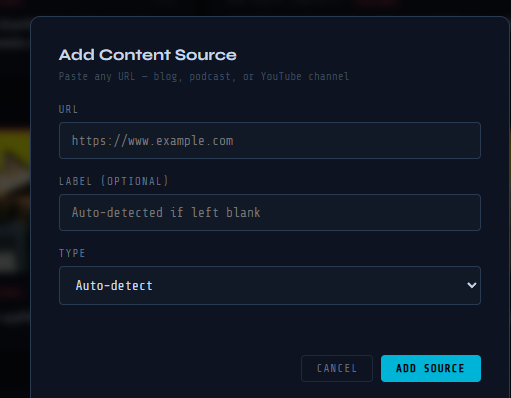
The API key situation. HamShackFeed fetches RSS feeds through a free proxy service called rss2json.com, which handles a browser security restriction that prevents web pages from pulling in content from other domains. What the Part 4 post didn’t cover — because it wasn’t an issue at the time — is that the free tier of rss2json.com throttles unauthenticated requests to one every ten seconds. In practice, that means sources load in slow motion and the Add Source button fails almost every time. The fix is a free API key from rss2json.com, which raises the limit to 10,000 requests per day. But it’s a setup step that isn’t obvious, and it became the number one question after that post.
localStorage is fragile. Every source you add, every article you mark as read — all of it lives in your browser’s localStorage, which I mentioned in Part 4 as where “state” is stored. What I glossed over is that localStorage is tied to one specific browser on one specific machine. Clear your browser history and it’s gone. Open the file on a different computer and it doesn’t know who you are. That’s fine for a quick-access tool but not great for something you’re checking multiple times a day.
One computer only. I have a ham computer in the shack and an admin computer at my desk. Every time I moved between them, I was looking at a different feed with different read state. Keeping them in sync manually wasn’t going to happen.
The Upgrade: Adding a Server (on Purpose)
Part 4 made a point of saying HamShackFeed needed no server. HamShackFeed Pro adds one — and that’s a deliberate trade-off, not a regression.
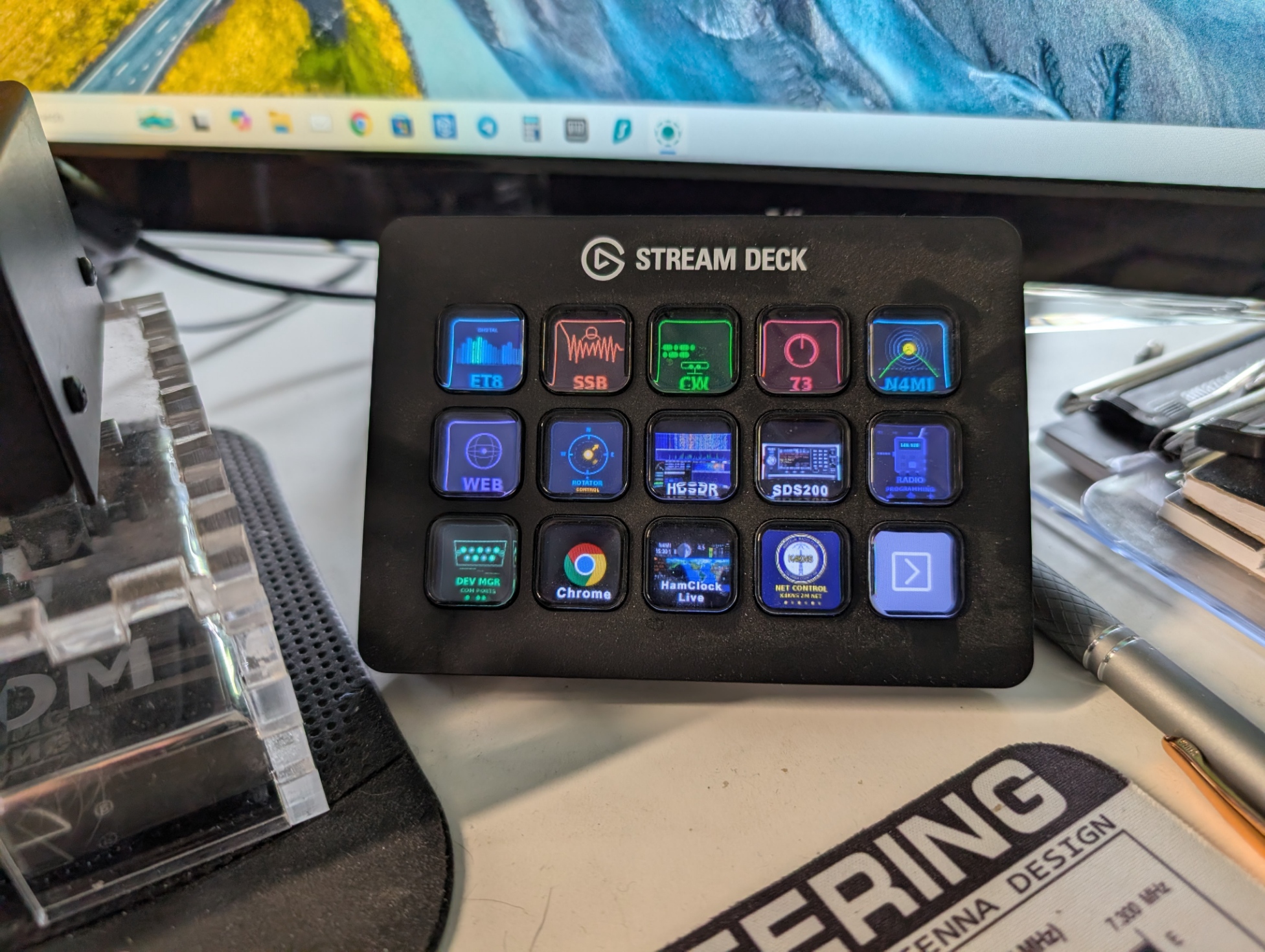
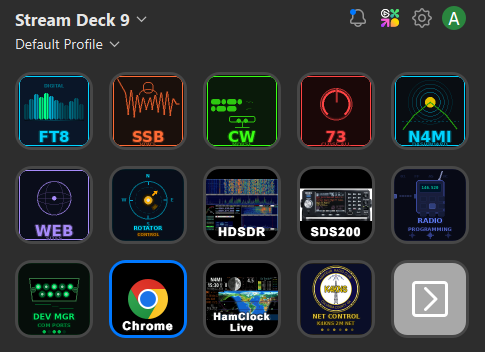
The server is small, runs locally on your ham computer, and you start it the same way you start the propagation dashboard: one PowerShell script, one Stream Deck button. In exchange for that setup step, you get three things that a standalone file simply cannot provide.
No API key needed. When a server fetches RSS feeds, the browser security restriction that made rss2json.com necessary doesn’t apply. The server talks directly to DX World, Ham Radio Workbench, the ARRL — wherever — and delivers the content to your browser clean. No proxy, no rate limits, no account to create. The ARRL feed, which rss2json.com occasionally struggled with because it uses HTTP instead of HTTPS, just works.
Persistence that actually persists. Everything in HamShackFeed Pro is stored in a SQLite database on your ham computer — sources, read state, favorites. Clear your browser history, reboot the machine, use a different browser entirely. When you come back, your feed looks exactly the same. The database file lives in your Ham Scripts folder alongside everything else.
Any device, same feed. The server binds to your local network, not just localhost. Any device on your WiFi — phone, tablet, laptop at the other desk — can open http://192.168.x.x:8074 and see the same feed with the same read state. Mark something read on your phone and it’s read on the shack computer too. Everything lives in one place.
HamShackFeed vs HamShackFeed Pro
| Feature | HamShackFeed | HamShackFeed Pro |
|---|---|---|
| RSS proxy API key | Required | Not needed |
| Source persistence | Browser localStorage | SQLite database |
| Read state persistence | Browser localStorage | SQLite database |
| Cross-device access | No | Yes — local network |
| Background refresh | No | Every 30 minutes |
| Installation required | None — open a file | Python + 4 packages |
| Portable / shareable | Yes — email it to anyone | Local server only |
What Stayed the Same
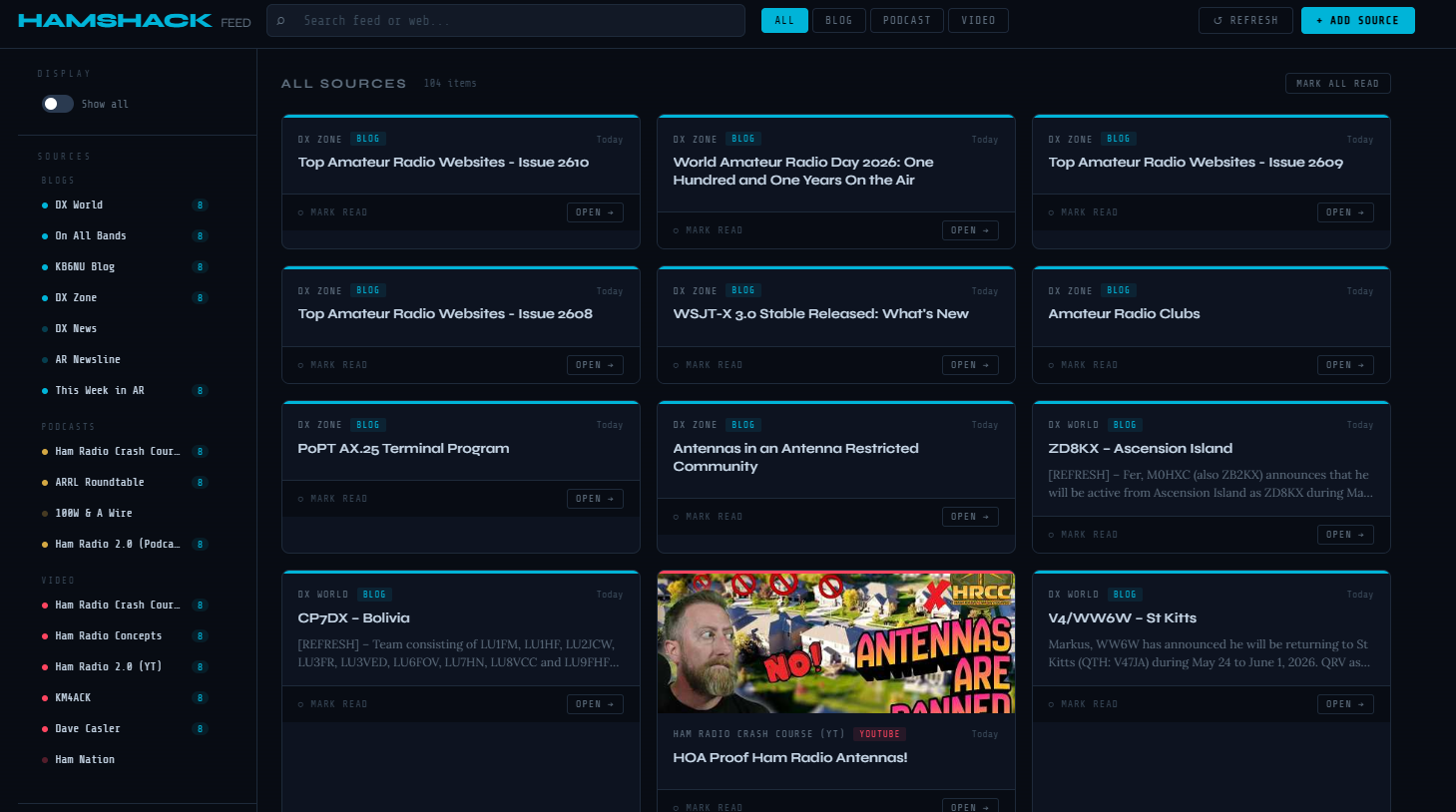
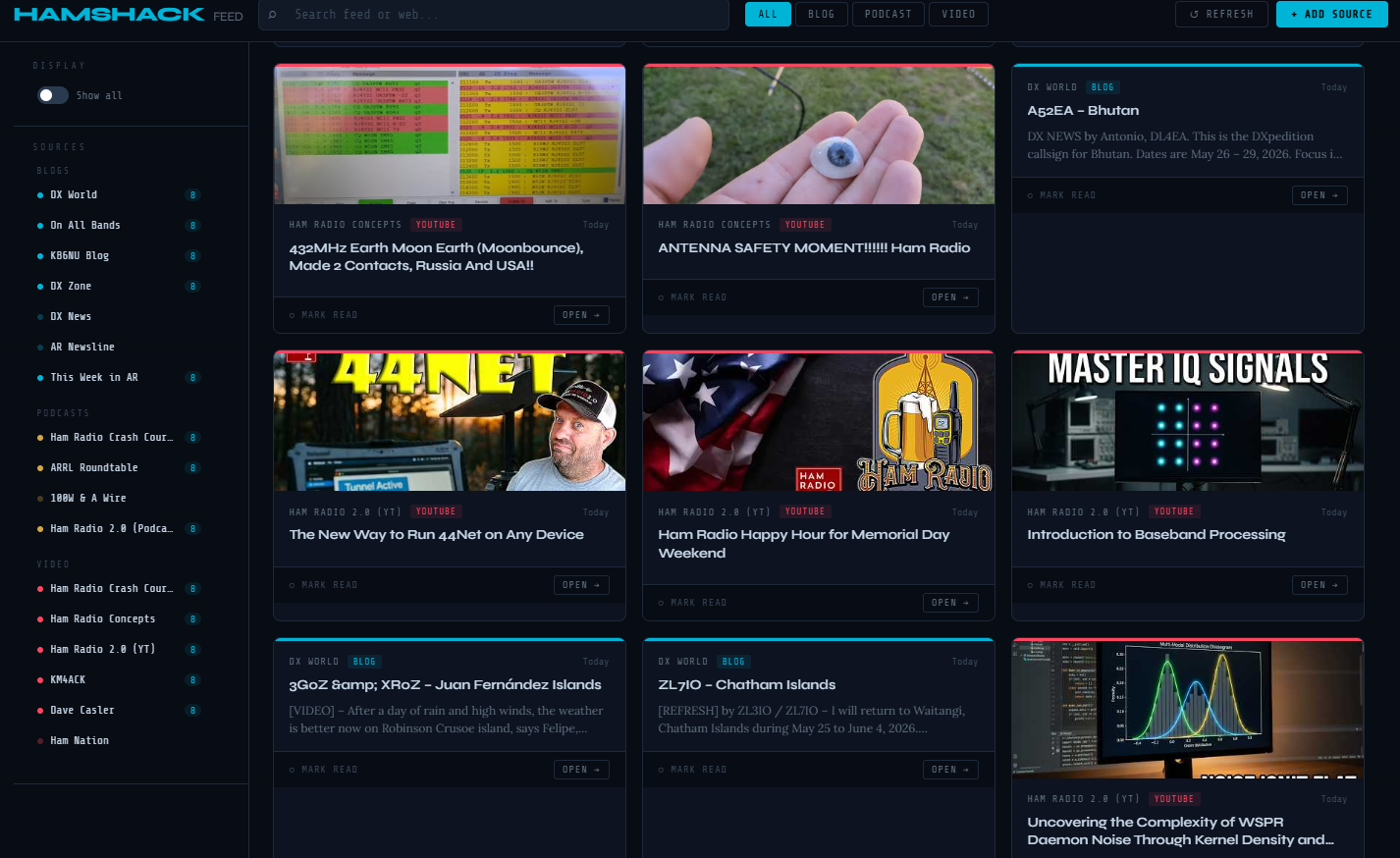
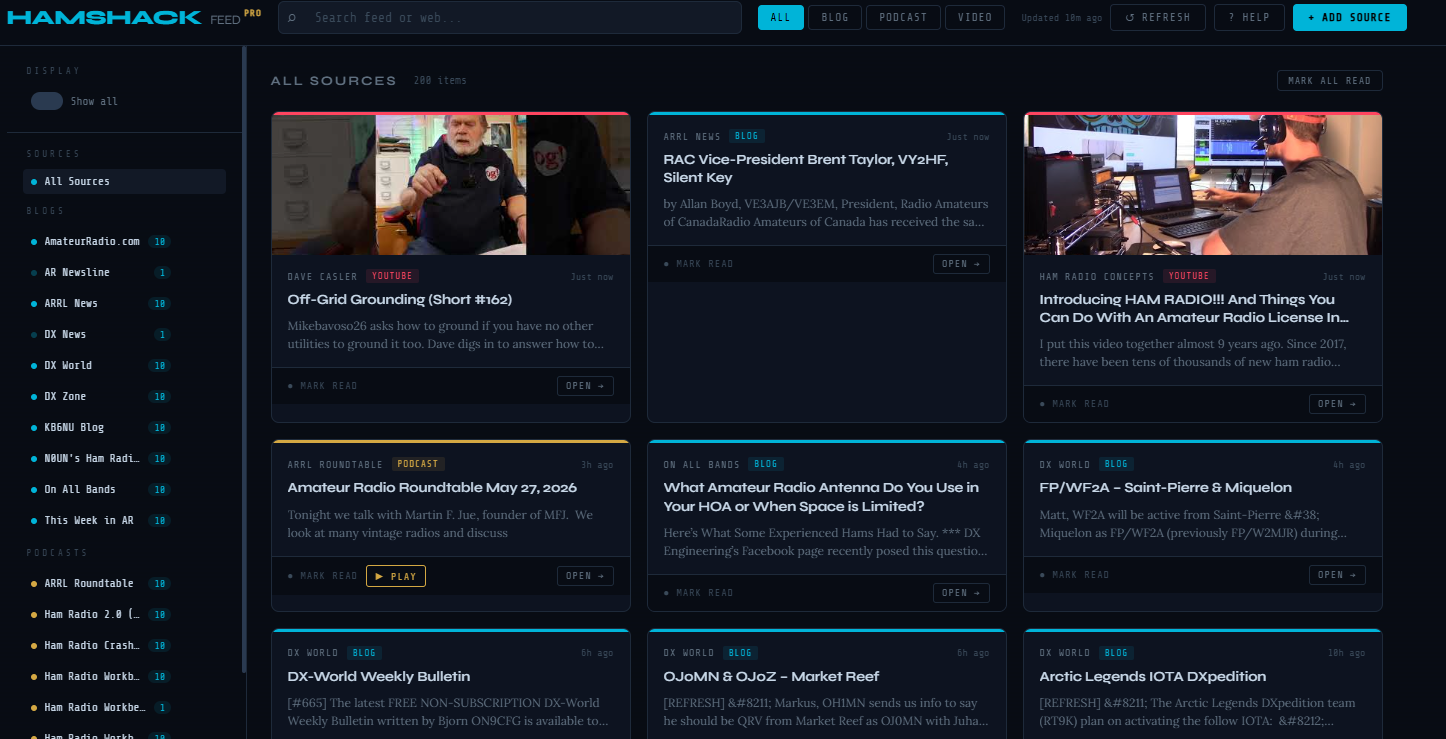
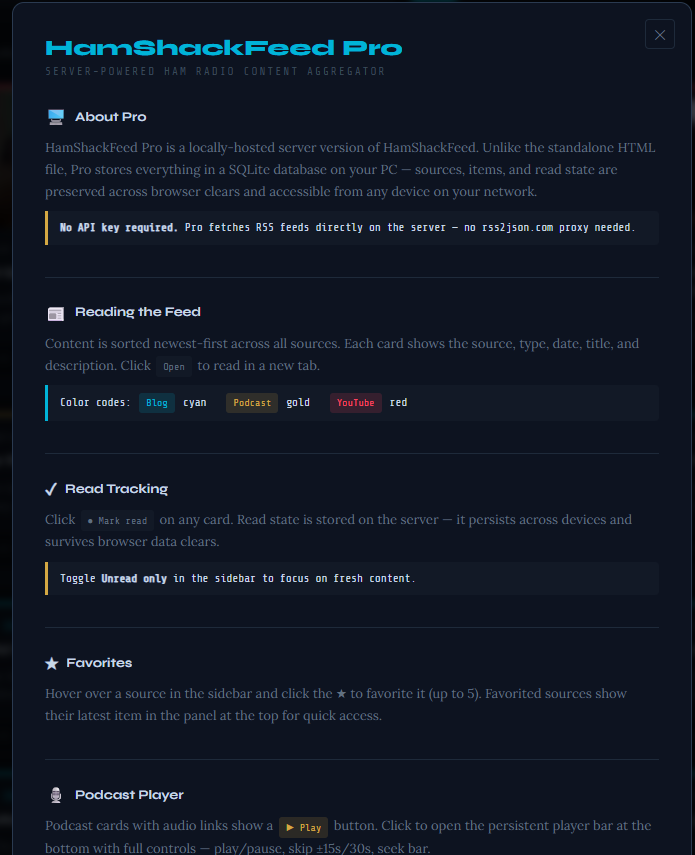
Intentionally, a lot. The visual design is identical — same dark navy theme, same card layout, same color coding for blogs (cyan), podcasts (gold), and YouTube (red). The sidebar, the favorites panel, the podcast player, the search bar, the filter buttons — all there, all working the same way.
The default source list, for the most part, carries over from Part 4. Two of the podcasts did not seem to be recently active and were replaced with Ham Radio Workbench and the ICQ Podcast, both active and worth following.
If you’ve been using HamShackFeed and have added your own sources, there’s a migration path. A short browser console command exports your custom sources as JSON, and a Python script imports them into Pro via the API. The whole process takes about two minutes.
Running Both
HamShackFeed and HamShackFeed Pro coexist without any conflict. The HTML version doesn’t use a port at all — it’s just a file. Pro runs on port 8074. If you want to keep the HTML version as a portable option to share with another ham, nothing changes. Pro is just the better daily driver when you’re at your own station.
My propagation dashboard runs on port 8073. Both it and HamShackFeed Pro can be open at the same time — I usually have both up when I’m in the shack.
The Stream Deck Button
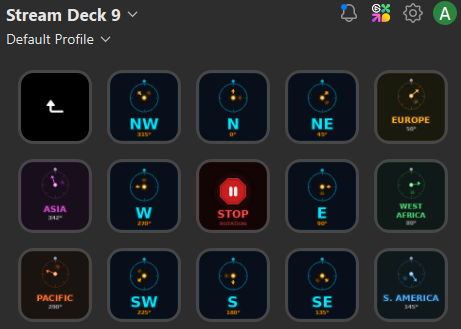
Same setup as the other shack tools — Advanced Launcher plugin, pointed at PowerShell 7, with the Start In directory set to the hamshackfeed_pro folder so Flask can find its templates:
Executable:  pwsh.exe
Arguments:   -ExecutionPolicy Bypass -Command "cd 'C:\Ham Scripts\hamshackfeed_pro'; python server.py"
Start In:    C:\Ham Scripts\hamshackfeed_pro
The server opens in a minimized window and launches the browser automatically.
On the Future Ideas List From Part 4
The closing section of the HamShackFeed post listed three things: podcast audio playback, DXCC expedition alert integration, and a mobile-friendly layout.
The podcast player landed in the HTML version shortly after that post. HamShackFeed Pro carries it forward — podcast cards with audio links show a Play button, and a persistent player bar appears at the bottom of the screen with full controls.

The mobile layout question is partly answered by Pro’s cross-device access — any phone or tablet on the local network can open the feed in a browser and it renders fine. A purpose-built mobile layout is still a future idea, but day-to-day it works well enough as is.
Adapting This Project
This project was built specifically for my station, equipment, and workflows.
If you decide to try it yourself, you will likely need to adjust file locations, hardware settings, network addresses, APIs, or other configuration details to match your own environment.
Rather than viewing the project as a finished product, think of it as an example of what can be created and adapted for your own shack.
Modern AI tools can often help make those changes quickly, even if you have little or no programming experience.
Get It
All the files are in the GitHub repo at github.com/N4MI73/streamdeck-hamradio under the hamshackfeed_pro/ folder. Full setup instructions are in the README, including how to install the Python dependencies, configure the Stream Deck button, open the Windows Firewall port for cross-device access, and migrate your sources from the HTML version.
If you’ve been using HamShackFeed and running into the API key or localStorage issues, Pro is a straightforward upgrade. If you’re coming to this fresh, Pro is the version to start with.