Stream Deck for Ham Radio — Part 5: Custom Icons, Getting Started & Closing Thoughts

This is the final post in the Stream Deck for Ham Radio series. We’ve covered mode launchers, a live propagation dashboard with storm alerts, rotator control, and a ham radio content aggregator. This post ties it all together — how the custom icons were created, how to get started building your own setup from scratch, and some closing thoughts on how this project evolved.

Everything built in this series is available for download at the project’s GitHub repository: github.com/N4MI73/streamdeck-hamradio. A complete step-by-step setup guide is also available as a PDF download — more on that at the end of this post.
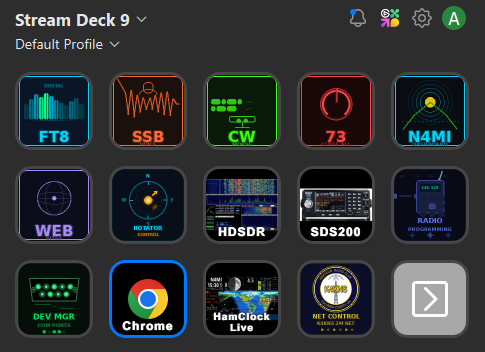
Stream Deck main button layout for ham radio showing FT8, SSB, CW, rotator control, dashboard, and utility buttons
The main Stream Deck layout as it stands today — mode launchers across the top row, utility and control buttons below, with folder buttons opening dedicated pages for rotator control and radio programming.

Custom Icons

The Stream Deck’s physical buttons are small — about 15mm square — so icons need to communicate their function at a glance without any reading required. The built-in Stream Deck software includes a basic icon editor and access to a marketplace, but I wanted something more cohesive — a consistent visual language across every button that made the whole layout feel like a purpose-built tool rather than a collection of random images.

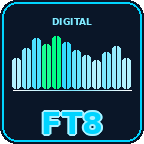
All of the custom icons in this project were generated using Python with the Pillow imaging library, with Claude helping design and write the generation scripts. Each icon is a 144×144 PNG with a dark background, rounded corners to match the physical button shape, and color coding by function — cyan for digital modes and web tools, warm tones for voice modes, red for shutdown, and compass-themed designs for the rotator controls.

Here’s a sample of the icon set:
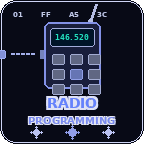
The radio programming folder contains icons for each radio in the shack — actual photos of each model used as button images, making it immediately obvious which button opens which programming software. This folder was added after the rest of the project was built, which is a good example of how the setup grows naturally over time.

Stream Deck radio programming folder showing RT Systems and other programming software buttons
The radio programming folder — each button opens the programming software for a specific radio. The RT Systems subfolder was added later as the shack’s radio collection grew.
Stream Deck RT Systems subfolder showing radio icons for each programmable radio
The RT Systems subfolder — a nested folder within radio programming, added organically as the project evolved. Each button shows the actual radio model for instant recognition.

The complete icon set — all 39 icons including compass directions, DX region presets, mode launchers, utility buttons, and radio programming icons — is available in the icons/ folder of the GitHub repository.

Getting Started

If this series has you interested in building your own setup, here’s the honest starting point: you don’t need to build everything at once. The most useful place to start is a single button that launches one app you open every operating session. Get that working, then add another. The full setup shown in this series grew one button at a time over several weeks.

The minimum requirements to get started:

  • An Elgato Stream Deck (any model — the 15-key MK.2 is a good starting point)
  • The free Stream Deck software from Elgato
  • The free Advanced Launcher plugin by BarRaider from the Stream Deck Plugin Store
  • Python 3.x installed with “Add to PATH” checked — only needed for the dashboard
  • The scripts and files from the GitHub repository saved to C:\Ham Scripts\

The scripts are plain text files that can be opened and edited in Notepad. The paths to your applications are set at the top of each script — update those to match your installation and everything else works as written. Claude at claude.ai can write or troubleshoot PowerShell scripts if you describe what you want — that’s exactly how all of the scripts in this project were built.

A complete step-by-step guide covering everything from finding app paths to configuring Stream Deck buttons, writing PowerShell scripts, setting up the dashboard server, and creating custom icons is available as a free PDF download:

📄 Download the Stream Deck Setup Guide (PDF)

Closing Thoughts

This project started with a simple goal — stop manually opening the same five apps every time I sat down to operate. It grew from there into something I use every day: mode launchers, a propagation portal, storm alerts, rotator control, a content aggregator, and a full set of custom icons. None of it was planned from the start. Each piece was added because something in the workflow felt like it could be smoother.

That’s the thing about a setup like this — it’s never really finished, and it doesn’t need to be. The Stream Deck is just a tool for running scripts, and PowerShell scripts are just text files. Adding a new button takes a few minutes. Changing how something works takes editing a few lines in Notepad. The barrier to customization is low enough that the setup can evolve naturally with your operating habits.

I’m sharing all of this as a fellow hobbyist — not for any commercial purpose, and not because my particular setup is the right one for anyone else’s shack. The scripts, dashboard, icons, and setup guide are all free to download, modify, and build upon. If you improve something, add a feature that would be useful to others, or adapt this for a different logging program or rotator controller, please share it. That’s how the ham radio community has always worked, and it’s how this kind of project gets better over time.

Thanks for following along with the series. The complete project is at github.com/N4MI73/streamdeck-hamradio. 73 de N4MI!
Stream Deck for Ham Radio — Part 4: HamShackFeed — My Personal Ham Radio Newsroom

Ham radio has a surprisingly rich content ecosystem. There are blogs covering DX expeditions and technical topics, podcasts perfect for the commute, and YouTube channels with tutorials, reviews, and operating demonstrations. The problem isn’t that the content isn’t out there — it’s that it’s scattered across a dozen different sites, and keeping up with all of it means either spending half your operating time clicking through bookmarks or missing things entirely.

I’ve had the experience of finding out about a DX expedition after it was already over, or discovering a podcast episode that would have been useful before a contest two weeks after it aired. A folder of bookmarks you mean to check regularly is not the same as actually checking them regularly. What I wanted was one place where everything shows up automatically — blogs, podcasts, and videos — without any clicking around.

The result is HamShackFeed — a single HTML file that aggregates RSS feeds from ham radio blogs, podcasts, and YouTube channels into one clean, searchable dashboard. No installation. No server. No account. No subscription fee. Just open the file in Chrome and your content is there.

HamShackFeed dashboard showing ham radio blog, podcast, and YouTube content cards in a three-column layout with source sidebar and filter buttons
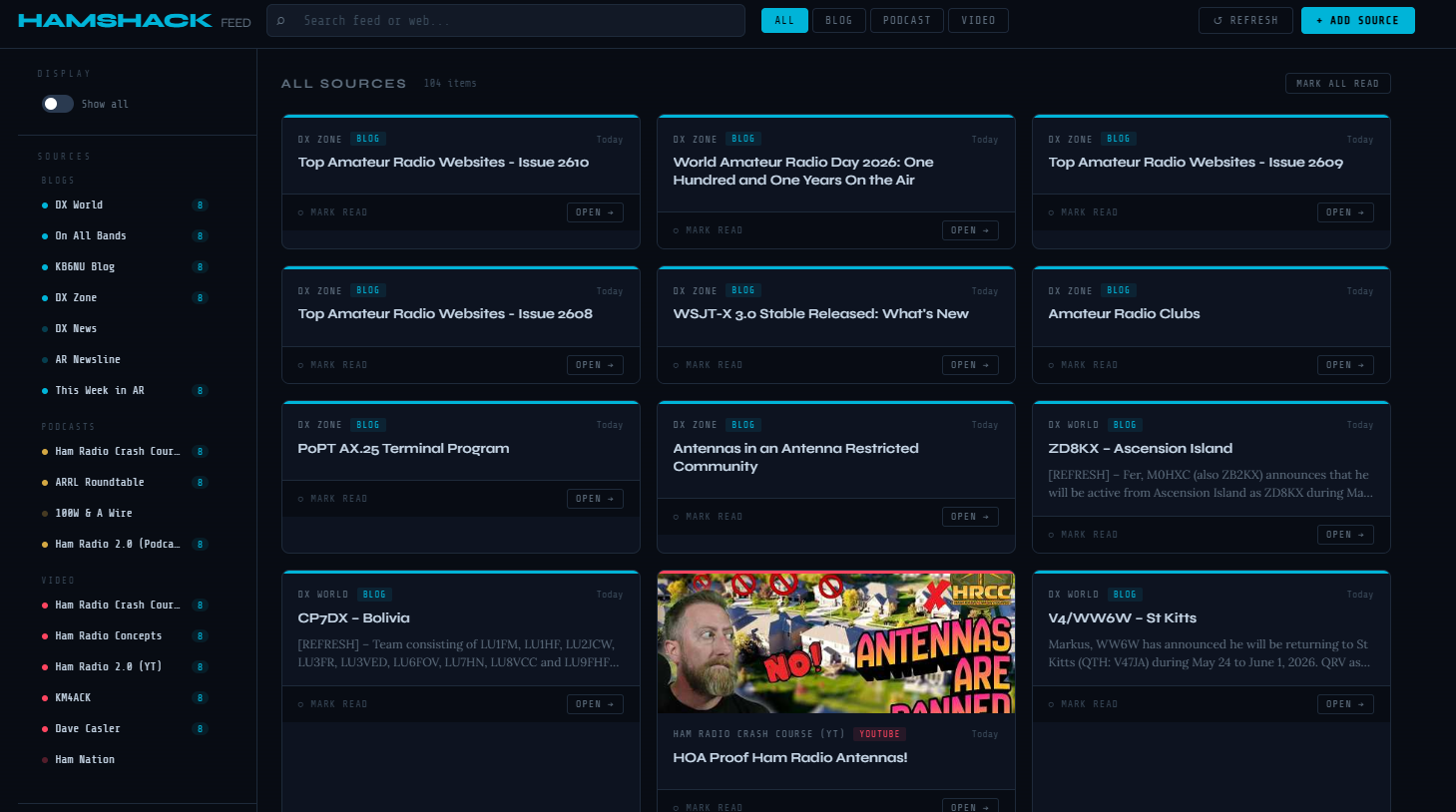
HamShackFeed loaded with 104 items across 17 sources — blogs, podcasts, and YouTube channels all in one view. The ZD8KX Ascension Island DX expedition announcement and a new WSJT-X 3.0 release notice are visible alongside YouTube thumbnails from Ham Radio Crash Course.

What Is RSS?

RSS (Really Simple Syndication) has been around since the early days of the internet and remains the most reliable, algorithm-free way to follow content. Almost every blog, podcast, and YouTube channel publishes an RSS feed — a structured list of their latest content that any reader can consume. There’s no feed curation, no promoted posts, no engagement-based sorting. Just the actual content from the sources you choose, in chronological order. Most people don’t know it’s there, but it’s been quietly powering podcast apps and news readers for decades.

The Sources

HamShackFeed comes pre-configured with 17 sources across three content types, all color coded — cyan for blogs, gold for podcasts, red for YouTube.

Blogs — DX World, On All Bands, KB6NU’s Ham Radio Blog, DX Zone, DX News, AR Newsline, and This Week in Amateur Radio. Between them these cover DX expedition announcements, operating tips, propagation news, technical articles, and the weekly ham radio news cycle.

Podcasts — Ham Radio Crash Course (Josh KD9FRQ), ARRL Roundtable, 100 Watts and a Wire, and Ham Radio 2.0 (Jason KC5HWB). All fetched directly via RSS — no podcast app required.

YouTube — Ham Radio Crash Course, Ham Radio Concepts, Ham Radio 2.0, KM4ACK, Dave Casler (KE0OG), and Ham Nation. YouTube publishes an RSS feed for every channel, so new video titles, descriptions, and thumbnails appear in the dashboard automatically — no YouTube API key needed.

Features

Each piece of content appears as a card showing the source, content type, publication date in human-readable form (Today, Yesterday, 3d ago), title, description excerpt, and thumbnail when available. Four filter buttons at the top — All, Blog, Podcast, Video — narrow the view instantly. The source sidebar on the left lists all sources grouped by type, each with an unread count badge, and clicking any source filters the feed to show only that source’s content.

Read tracking is built in — each card has a Mark Read button, and once marked, cards dim but stay visible. An Unread Only toggle hides everything already read so you can focus on fresh content. Mark All Read clears the queue in one click. All read state is stored in your browser’s local storage and persists between sessions.

The search bar at the top filters feed items in real time as you type. Longer queries also trigger a DuckDuckGo web search filtered to ham radio content, with results appearing below the main feed — a quick way to find content beyond what’s in your current source list.

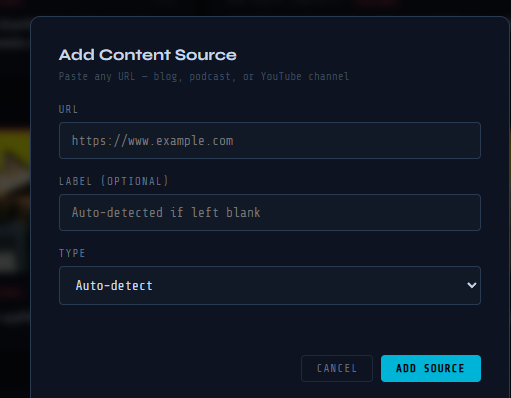
Adding a new source is straightforward — paste any blog URL, podcast URL, or YouTube channel URL into the Add Source modal and the dashboard detects the feed automatically. Paste a YouTube channel URL and it extracts the channel ID and constructs the RSS feed URL without any manual steps. Added sources persist in local storage and survive page refreshes.

HamShackFeed Add Content Source modal showing URL field, optional label field, and auto-detect type dropdown
The Add Content Source modal — paste any blog, podcast, or YouTube channel URL and the dashboard auto-detects the feed type and label. No manual RSS URL hunting required.
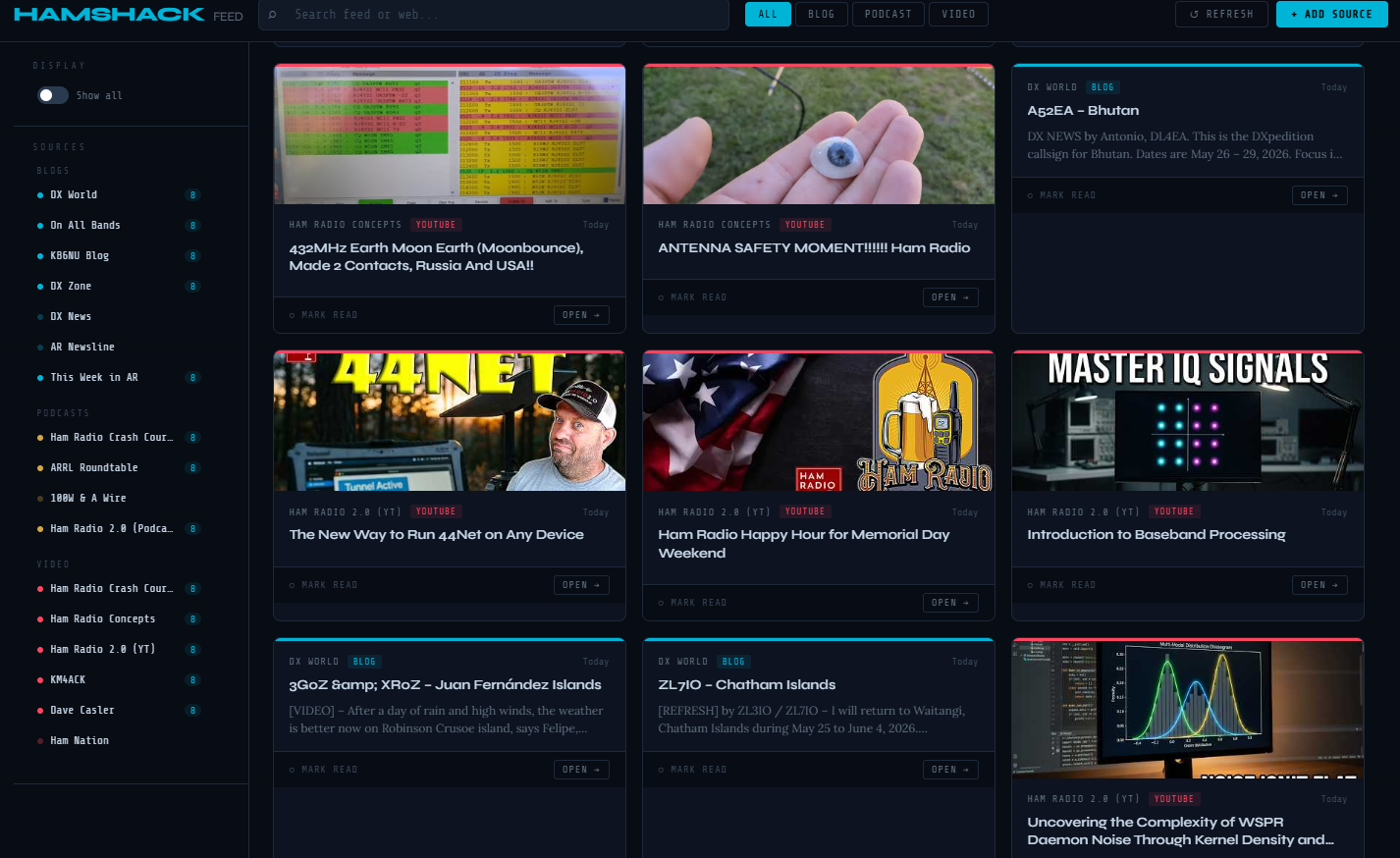
HamShackFeed showing YouTube video thumbnail cards from Ham Radio Concepts and Ham Radio 2.0 alongside DX World blog cards for active DX expeditions
YouTube cards display full thumbnails alongside blog content — three active DX expeditions (A52EA Bhutan, 3G0Z Juan Fernández Islands, ZL7IO Chatham Islands) visible alongside EME and digital mode video content from Ham Radio Concepts and Ham Radio 2.0.

How It Works

HamShackFeed is a completely self-contained HTML file. Unlike the propagation dashboard from Part 2 of this series, it doesn’t need a local Python server — it works by opening the file directly in Chrome. Feed fetching uses the free rss2json.com API, which handles the browser’s cross-origin restrictions (CORS) by fetching feeds server-side and returning them as clean JSON. All state — read items, added sources, removed sources — is stored in browser localStorage. Nothing is sent to any server except the feed fetch requests themselves.

Getting Started

Requirements: Google Chrome (or any modern browser) and an internet connection. That’s it — no Python, no PowerShell, no installation of any kind.

  • Download HamShackFeed.html from the project’s GitHub repository: github.com/N4MI73/streamdeck-hamradio
  • Save it anywhere on your PC — C:\Ham Scripts\ works well if you have the Stream Deck setup from the rest of this series
  • Open it in Chrome — double-click it in File Explorer or drag it into a Chrome window
  • Feeds load automatically — give it 10–20 seconds for all sources to fetch
  • Click Unread Only to focus on fresh content, use the filter buttons to narrow by type, and add or remove sources to match your interests

Bookmark the local file path in Chrome for easy access: file:///C:/Ham%20Scripts/HamShackFeed.html

Adding It to Your Stream Deck

If you’re following this series and already have a Stream Deck set up, adding HamShackFeed takes about 30 seconds. Use the Advanced Launcher plugin with Chrome as the application and the file path as the argument:

--profile-directory="Profile 1" "C:\Ham Scripts\HamShackFeed.html"

A matching Stream Deck icon is available in the icons folder of the GitHub repository.

Sharing With Other Hams

Because HamShackFeed is a single self-contained file with no dependencies, sharing it is as simple as sharing any file — email it, put it on a club website, or link it from GitHub. Anyone can download and use it immediately. The default source list is pre-configured with all 17 sources, and each operator’s customizations (added sources, read state) are stored locally in their own browser — sharing the file with another ham gives them a clean slate with the default sources, not your personal configuration.

There’s also an interesting club application here. A club could maintain a version pre-configured with their own newsletter RSS feed, local repeater club news, and regional content alongside the general ham radio sources — then share it at a club meeting as a single-file download.

Closing Thoughts

The ham radio content community is larger and more active than many operators realize. HamShackFeed makes it practical to follow all of it without spending time hunting for updates. RSS is older than most social media platforms but remains the best way to follow content on your own terms — no algorithm deciding what you see, no promoted posts, just the content from the sources you choose in the order it was published.

This is version 1. Future ideas on the list include audio playback for podcasts directly in the dashboard, DXCC expedition alert integration to cross-reference DX World announcements with your most wanted list, and a mobile-friendly layout for tablet use at the operating position.

Download HamShackFeed from the project repository at github.com/N4MI73/streamdeck-hamradio.

Station upgrades coming soon!

I’m working on some significant upgrades to my ham radio station. I finally received a Mercury IIIs amplifier. I was on the waiting list for about a year. I also got a Palstar HF Auto tuner to handle the increased power from the amp. For outside the shack I also got a K4KIO Hexbeam antenna. The only problem is that I don’t have a tower for it yet. That will be next, and hopefully soon! I’ll make additional posts as I bring the new equipment online.

New QSL Card Art from K1NSS

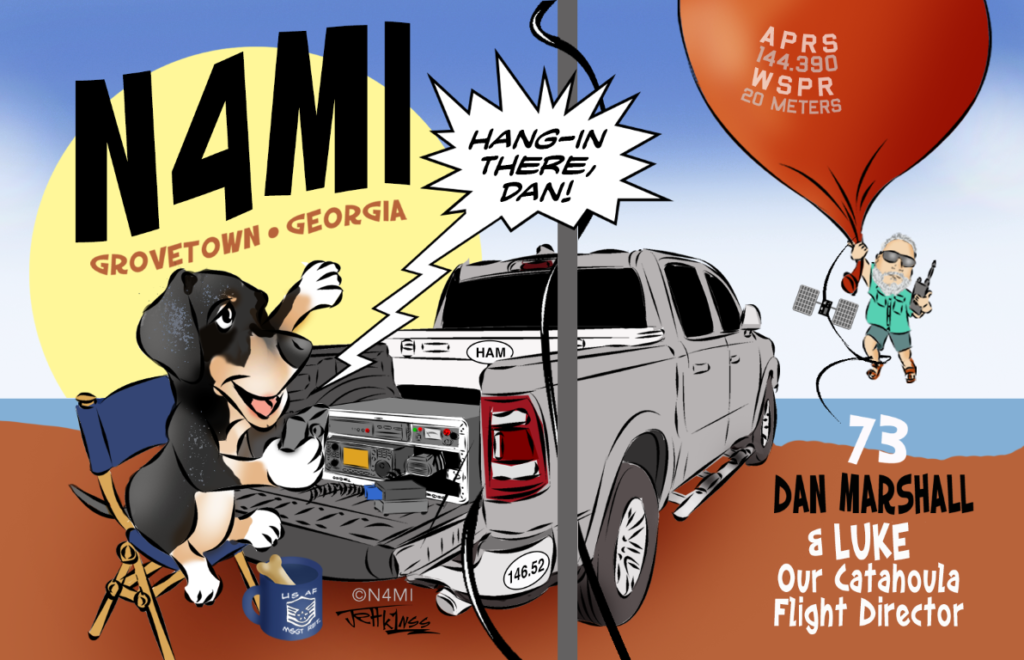
I wanted to incorporate some of my most recent ham radio activities into a new QSL card. I reached out to my friend Jeff, K1NSS, and gave him a basic idea about what I wanted. I wanted my DX hound buddy Luke the Catahoula featured in the card. As usual, he worked his magic and came up with a fantastic design that captured my vision, and then some! What do you think? This version will be going to the printer soon.

I got a new callsign!

I’m not sure exactly why I did it, but on a whim I decided to apply for for a few 1X2 and 2X1 vanity callsigns in call area 4 that were becoming available. Much to my surprise, yesterday I received a notice that I had been granted a new callsign – N4MI. It was not at the top of the list that I submitted to the FCC, but it turns out this is a great callsign for CW: -. ….- — ..

I did not realize how many things would need to be updated with a new callsign. To name just a few:

ARRL and Logbook of the World
VE credentials
DMR id
D-Star registration
Echolink
QRZ.com logbook and callsign page
Clublog
HRDLog.net
eQSL
DXmaps
aprs.fi
Reprogram hotspots and D-Star, DMR, APRS radios
Updating the name and domain for this website
New Email address (if it’s based on your callsign)
New QSL cards, shirts, hats, name tags (any physical item with a callsign)
New license plate with new callsign
WSJT-X, JTAlert, JS8Call, Ham Radio Deluxe, logging programs, Winlink, etc.
… and probably several other things I’ll discover later!

If you’re an active ham, when you apply for a new callsign do yourself a favor and make a list of things that will need to be updated ahead of time. Some of these changes are easy, but others are more involved and require time to complete.

Hamshack Hotline

A local ham friend shared a link with me for Hamshack Hotline, which is a free dedicated VOIP service for the ham radio community. In order to get on this network, I purchased a used Cisco SPA504G IP phone from eBay for $29. There are several other IP phones that will work with the service, but the SPA504G works great, and the price was right! It is important when purchasing a used phone to ensure that it is unlocked. The Hamshack Hotline website has all the information necessary to get started.

Once I received the phone, and connected it to my home network, I followed the instructions on the web page, and submitted a ticket for a new line using the HHOPS Help Desk. The Help Desk web page also includes a knowledge base and downloadable documents that are a great help for installing an IP phone on their network.

Within a couple of days, I had a response from the Help Desk team with my new HH phone number, and a link to a provisioning document for my phone. The instructions were easy to follow, and the team has created a process for provisioning that is nearly foolproof. I say nearly because I did have a slight issue with my home network, but the Help Desk team came through again and got me up and running very quickly!

My Hamshack Hotline phone number is 11642.