I’ve had a LilyGO T-Encoder Pro sitting on my desk for a while now, running FlightScnr — a slick little project by Yash Mulgaonkar that turns this small round display and knob into a flight tracker. It’s genuinely useful as a desk instrument, and it got me thinking: this hardware — a round AMOLED screen, a rotary encoder, Wi-Fi, all in a compact desk-friendly form factor — is a good general-purpose platform. Not just for flight tracking. I bought a second unit intending to build another FlightScnr, and then realized I really wanted something else on my desk: live HF propagation conditions, at a glance, without opening a laptop or pulling up a dashboard.

So I started what I’m calling the N4MI Desktop Instrument Series — a family of small purpose-built instruments on this same hardware. The first one is a Propagation Monitor, and as of this week I’m calling it done enough to call “v1.” The PropMon code was created with Claude, with design assistance from ChatGPT.
Where the data comes from
The interesting design decision here wasn’t really the display — it was figuring out where the propagation data should actually come from. I already had a propagation dashboard running on my ham computer, and the easy answer would have been to just add a small API endpoint to that existing server.
The problem is I stop that dashboard server all the time — there’s a Stream Deck button that kills it whenever I’m not actively using the shack computer for something. A desk instrument that goes dark every time I turn off an unrelated program isn’t really a desk instrument. The whole point is that it’s always there.
That ruled out the shack computer, and pointed me at the one machine in the house that’s genuinely always on: my NAS. So I built a small, dedicated backend service — I’m calling it PropMon — that runs there in Docker via Portainer, fetches propagation and weather data on a timer from HamQSL, NOAA, my WeatherFlow Tempest station, and NWS alerts, applies some rating logic, and serves it up as flat JSON. No UI, no database, just a small always-on service whose only job is to answer “how are the bands right now?” It’s a bit of duplicated logic between it and my existing dashboard, but decoupling the desk instrument from a machine I turn on and off all the time was worth that trade.
The instrument itself
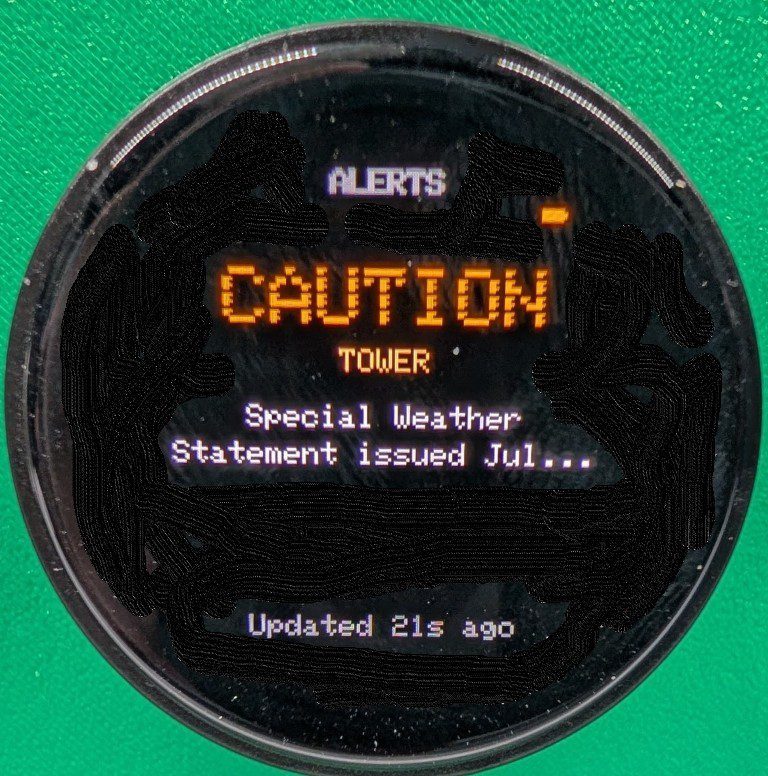
The firmware cycles through four screens with a turn of the knob — an Overview with the headline band conditions, a full Bands screen showing all ten bands individually, a Solar screen with the full SFI/K-index/sunspot/X-ray picture, and an Alerts screen for anything from PropMon worth knowing about (a geomagnetic storm, a tower wind warning, that kind of thing). A short press forces a refresh, a longer hold pulls up a config screen showing connection status, and holding even longer than that drops you into Wi-Fi setup — more on that in a second.


I also added an ambient alert system on top of all four screens: if something changes — a new alert, or an existing one getting worse — a banner pops up for a few seconds regardless of which screen you’re looking at, and a small badge sticks around as long as the condition is active. I wanted the thing to actually catch my eye if 40 mph wind gusts show up in the forecast, not just quietly update a number I’d have to notice on my own.
A real bug worth telling
One of the more satisfying moments in this project happened once I finally had live data flowing end to end. I glanced at the Bands screen mid-evening and 160 meters was showing GOOD — during full daylight, when 160m should be essentially dead from D-layer absorption.
I pulled up the real HamQSL reference page at the same exact moment to rule out stale data — same solar flux, same K-index, everything matched, so it wasn’t a caching problem on my end. That sent the bug report over to the PropMon side of the project, and it turned into a nice bit of detective work: the time-of-day logic PropMon uses was built on a fixed year-round UTC clock — dusk was hard-coded as roughly 6 to 9 PM Eastern, no matter the season. For most bands that’s a forgivable approximation. But 160m and 80m are basically all-or-nothing — fully shut down by day, wide open once it’s genuinely dark — so a few hours of seasonal drift on a fixed clock was enough to produce a rating that was flatly impossible rather than just a little off.
The fix computes real civil dusk and dawn for my actual location instead of guessing from a fixed clock, and only for those two bands specifically. I checked the computed dusk times against my own years of on-air experience — 160m opening around 6 PM in winter, more like 9 PM in summer — and they lined up within about ten minutes at both extremes. A nice moment where the math and the years of just being on the radio agreed with each other.
Getting Wi-Fi credentials onto the thing without a laptop
The last big piece was making this something I could actually hand to another ham without them needing to edit source code and reflash it just to get on their own Wi-Fi. The device now opens its own temporary network for a few minutes when you hold the knob down — connect your phone, a page pops up automatically, pick your network from a scanned list, type your password, done. Credentials get stored on the device itself, and the setup network disappears once it’s connected.


Getting there took a couple of real, honest bugs — one where the device could report “connected!” without actually testing the password you’d just typed (found because I deliberately tried a wrong one and it worked anyway, which is exactly the kind of thing worth testing on purpose), and one where scanning for networks and running the setup hotspot at the same time turned out to be a genuine limitation of the ESP32’s radio, not something to just retry harder against. Both are fixed now and confirmed working end to end, wrong passwords included.
Where it stands
As of this week, it’s running live on my desk — real Wi-Fi, real data, correctly-rated bands, day or night. I’m calling this v1 and I’m going to let it run for a while in actual daily use before deciding what’s next. There’s a whole list of other instruments I want to build on this same platform — an APRS activity monitor, a DX cluster monitor, satellite pass alerts — but that’s future work for another post.

If you want to build one of these yourself, both halves of the project are public:
- N4MI Propagation Monitor — https://github.com/N4MI73/n4mi-propagation-monitor — the firmware, plus build/flash instructions and the Wi-Fi setup walkthrough
- PropMon — github.com/N4MI73/streamdeck-hamradio/tree/main/propmon — the backend service, deployable via Docker/Portainer
The firmware and backend service are in different repositories due to a shift in planning mid-project (my rookie mistake). Future instruments will have the firmware and backend service in the same repository. Both READMEs point at each other, so you can start from either one. Fair warning: you’ll want to already be comfortable standing up a Portainer stack before you dive in — that part’s on you.
What’s Next?
Now that the Propagation Monitor is running day-to-day, I’m turning my attention to the next instrument in the series: APRSMon, a desk display for local APRS activity — nearby stations, weather, and alerts. Same hardware, same one-glance philosophy, different question to answer. More on this as it takes shape.
73,
Dan — N4MI