
One of the more satisfying parts of this whole project was getting rotator control working directly from the Stream Deck. Before this, pointing the beam meant switching to PSTRotatorAz, clicking a bearing, and waiting. Now I press one button and the rotator starts moving. For DX region presets, I press the Europe button and the beam swings to 50 degrees automatically — no manual entry required.
This post covers Part 3 of the Stream Deck series — controlling a Yaesu antenna rotator directly from the Stream Deck using PowerShell scripts that send UDP commands to PSTRotatorAz.
How It Works
PSTRotatorAz supports remote control via UDP on port 12000. A PowerShell script can send an azimuth command directly to the running software using a simple XML-formatted UDP packet — no third-party plugin required, just PowerShell’s built-in networking. The command format is straightforward:
<PST><AZIMUTH>270</AZIMUTH></PST>That’s it. PSTRotatorAz receives the packet and starts rotating to the specified bearing. The script validates the azimuth value (0–360), sends the command, confirms it in the console, and exits. The whole thing runs in under a second.
Enabling UDP Control in PSTRotatorAz
Before the scripts will work, UDP control needs to be enabled in PSTRotatorAz:
- Open PSTRotatorAz
- Go to Communication → UDP Control → Enable
- Set the port to 12000 (default)
- Click OK and confirm the UDP indicator is active
To verify the port is available before enabling: open a PowerShell window and run netstat -ano | findstr ":12000" — no output means the port is free.
The Two Scripts
RotatorAzimuth.ps1 is the workhorse. It accepts a single -az argument and sends the corresponding azimuth command to PSTRotatorAz. Every compass direction button and every DX region preset calls the same script with a different azimuth value:
-ExecutionPolicy Bypass -File "C:\Ham Scripts\RotatorAzimuth.ps1" -az 50RotatorStop.ps1 sends an immediate stop command to PSTRotatorAz, halting rotation wherever the antenna currently is. This is useful if you press the wrong direction button or want to stop mid-swing.
Both scripts are available for download in the project’s GitHub repository: github.com/N4MI73/streamdeck-hamradio
Button Layout
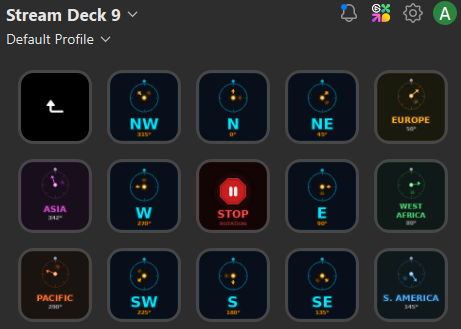
The rotator control page is organized as a folder within the main Stream Deck layout — pressing the Rotator Control button on the main page opens this dedicated page with an automatic back button in the top left corner.
The layout is arranged in three rows:
- Row 1 — Back button, NW (315°), N (0°), NE (45°), Europe (50°)
- Row 2 — Asia (342°), W (270°), STOP, E (90°), West Africa (80°)
- Row 3 — Pacific (290°), SW (225°), S (180°), SE (135°), S. America (145°)
The compass directions are arranged spatially so they mirror an actual compass rose — N at the top center, S at the bottom center, and the intercardinal points in their correct positions. The DX region presets are placed on the outer edges next to the compass direction they’re closest to, making it intuitive to find the right button at a glance.
DX Region Presets
The five DX region buttons use approximate great-circle headings from my grid square EM83 in central Georgia:
- Europe — 50°
- West Africa — 80°
- S. America — 145°
- Pacific — 290°
- Asia — 342°
These are starting points rather than exact headings — propagation paths vary by band and conditions. For a quick DX pileup, pressing Europe and being within a few degrees is close enough. For precision work, PSTRotatorAz’s built-in DXCC lookup or an online great-circle calculator will give you the exact bearing. Operators in other grid squares should calculate their own headings and update the -az values in their Stream Deck button configurations accordingly.
The Custom Icons
Each rotator button has a custom icon showing a compass rose with the beam arrow pointing in the correct direction, color coded by type — cyan/blue for compass directions, earth-tone colors for DX regions, and red for the Stop button. At a glance I can tell exactly where each button will point the beam without reading the label. The Bearing button shows a compass with a query indicator — pressing it displays the current azimuth reported by PSTRotatorAz.
The next and final post in this series covers how the custom icons were created, a getting started guide for operators who want to build their own setup from scratch, and some closing thoughts on how this project evolved over time.
Adapting This Project
This project was built specifically for my station, equipment, and workflows.
If you decide to try it yourself, you will likely need to adjust file locations, hardware settings, network addresses, APIs, or other configuration details to match your own environment.
Rather than viewing the project as a finished product, think of it as an example of what can be created and adapted for your own shack.
Modern AI tools can often help make those changes quickly, even if you have little or no programming experience.