
Why Use a Stream Deck?
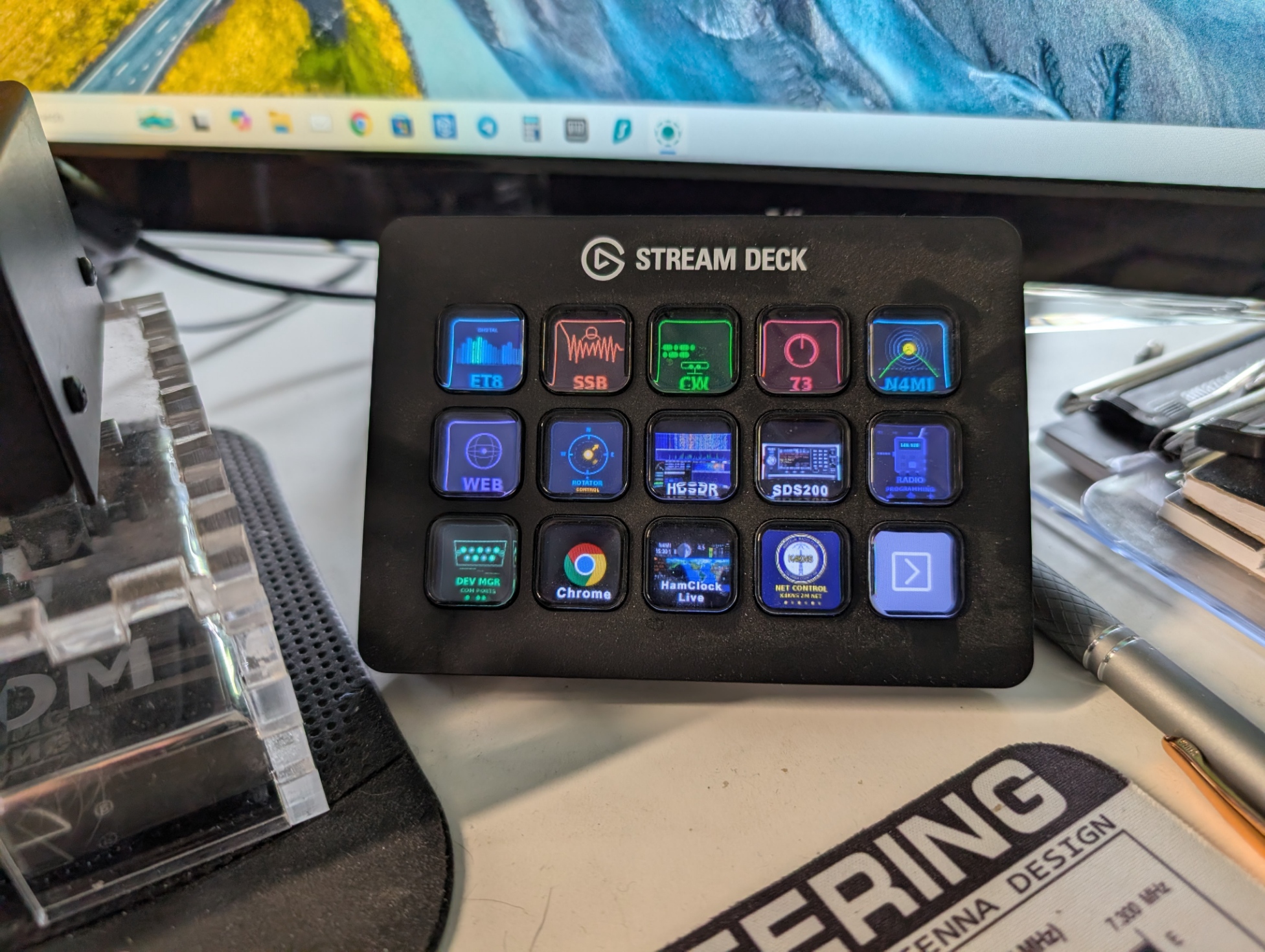
The Elgato Stream Deck is best known in the gaming and streaming world, but its one-press button triggering makes it a natural fit for ham radio operating workflows. With some assistance from AI (Claude), I was able to create buttons that open all of the apps I use across my different operating modes — with a single press.
Every time I sit down to operate, I was opening the same combination of apps — logger, digital mode software, cluster, rig control. The Stream Deck eliminates that repetitive clicking and lets me focus on what matters: operating.
The real power comes from pairing the Stream Deck with PowerShell scripts on Windows, which gives far more control than simple app launching — I added sequenced delays, popup reminders, conditional logic, and even send commands directly to running software. Since I operate multiple modes (FT8, CW, SSB), switching between software stacks used to be one of the most error-prone parts of my workflow — wrong rig interface settings, apps launched in the wrong order, forgetting to reset something between modes. The Stream Deck removes that friction entirely.
The Foundation — PowerShell Scripts
The Stream Deck’s built-in “System > Open” action can launch any application, but it lacks the ability to pass arguments or introduce delays between launches. The Advanced Launcher plugin (BarRaider) solves this by adding an Arguments field and a Run as Administrator option.
PowerShell is built into every Windows installation and is the perfect tool for writing multi-step launch sequences. Scripts are plain text files (.ps1) that anyone can read, edit, and customize in Notepad — no programming background required.
The key PowerShell concepts used in these scripts are straightforward:
Start-Process— launches an applicationStart-Sleep— introduces a delay between launchesparam()— lets one script serve multiple modes via a-modeargumentswitch— routes execution to the right mode blockMessageBox— displays a popup reminder before launchingSystem.Net.Sockets.UdpClient— sends UDP commands directly to running software
Scripts are stored in a dedicated folder (C:\Ham Scripts) and called from Stream Deck buttons with the -ExecutionPolicy Bypass flag to allow unsigned local scripts to run. Claude generated all of the scripts I used, and also produced a step-by-step PDF guide for building your own from scratch.
All scripts are available for download on the project’s GitHub repository: github.com/N4MI73/streamdeck-hamradio
Custom Workflow Launchers
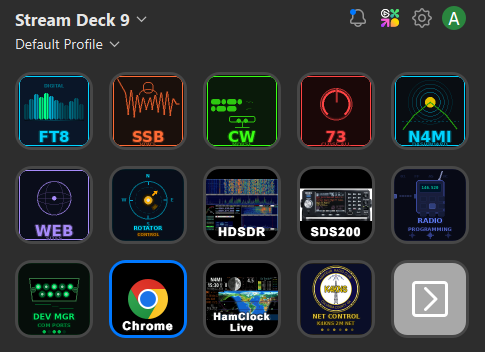
Different operating modes require different software combinations. Rather than memorizing which apps to open for each mode, each Stream Deck button launches the complete stack for that mode with one press.
App launch order matters. For my FT8 workflow, JTAlert depends on WSJT-X being fully loaded, and Amateur Contact Log (ACLog) needs to be ready before either. A short delay (typically 3–4 seconds) between each app gives the previous one time to initialize before the next tries to connect. For apps that require administrator privileges — like MRP40 in my CW workflow — the Advanced Launcher plugin handles elevation automatically.
My Three Workflows
FT8/FT4
Launch sequence: ACLog → PSTRotatorAz → WSJT-X → JTAlert
- ACLog must be configured with Rig Interface OFF and TCP Server ON for WSJT-X to connect
- A popup reminder appears before launch prompting me to verify the ACLog settings
- JTAlert receives spot data from WSJT-X and requires it to be fully loaded first
- Delay before JTAlert: 4 seconds (adjustable based on PC speed)
CW
Launch sequence: ACLog → PSTRotatorAz → MRP40
- ACLog switches to Rig Interface ON (COM 6 for my IC-7610) and TCP Server OFF
- MRP40 (Morse decoder) must run as Administrator — handled automatically by Advanced Launcher
- MRP40 must be launched from its own working directory to find its supporting files — a known quirk, fixed with
-WorkingDirectoryin the PowerShellStart-Processcall - The popup reminds me to verify MRP40’s COM port and sound card settings, which it doesn’t always save reliably between sessions
SSB
Launch sequence: ACLog → PSTRotatorAz
- Simplest workflow — rig interface active, no digital mode software needed
- Popup confirms ACLog has Rig Interface enabled before launching
ACLog Multi-Rig Tip
ACLog supports saving multiple rig configurations and switching between them instantly with Ctrl+X. Rather than manually changing settings each time, I have one profile configured for FT8 (TCP Server ON, Rig Interface OFF) and one for CW/SSB (Rig Interface ON). The popup reminder in each launcher script tells me which profile to select before clicking OK — a small thing that has saved me from a lot of head-scratching.
Clean Shutdown Script
A dedicated “Close All Apps” (73) button handles the shutdown sequence in reverse dependency order:
- A confirmation prompt before doing anything
- A rotator reminder to return to North (0°) before closing PSTRotatorAz
- JTAlert closed before WSJT-X, WSJT-X before ACLog — proper dependency order
- A prompt asking whether to stop the dashboard Python server or leave it running
On another Stream Deck screen, I still have dedicated icons to launch the programs individually, in case I have a need to open one without the others.
Future posts in this series will cover a tailored propagation and information portal for my location and callsign, and controlling my rotator directly from the Stream Deck.
Adapting This Project
This project was built specifically for my station, equipment, and workflows.
If you decide to try it yourself, you will likely need to adjust file locations, hardware settings, network addresses, APIs, or other configuration details to match your own environment.
Rather than viewing the project as a finished product, think of it as an example of what can be created and adapted for your own shack.
Modern AI tools can often help make those changes quickly, even if you have little or no programming experience.
📁 Downloads: All scripts, the propagation dashboard, and the complete icon set are available at the project repository: github.com/N4MI73/streamdeck-hamradio